
Add an Attribute to a Reward Class
A Reward Class allows you to define custom fields (called Attributes) that describe your products. For each Attribute in the Reward Class, you can optionally define a set of valid values (called Domain values). You can also define the default Domain value.
To add an Attribute to a Reward Class:
-
Select Rewards from the top navigation bar, then select Settings > Reward Classes from the side navigation menu. The Reward Classes screen is displayed.
-
Search for and select the desired Reward Class (see Search for a Reward Class for more information on the available search options). The Reward Class Details screen is displayed, with the Attributes tab selected by default.
-
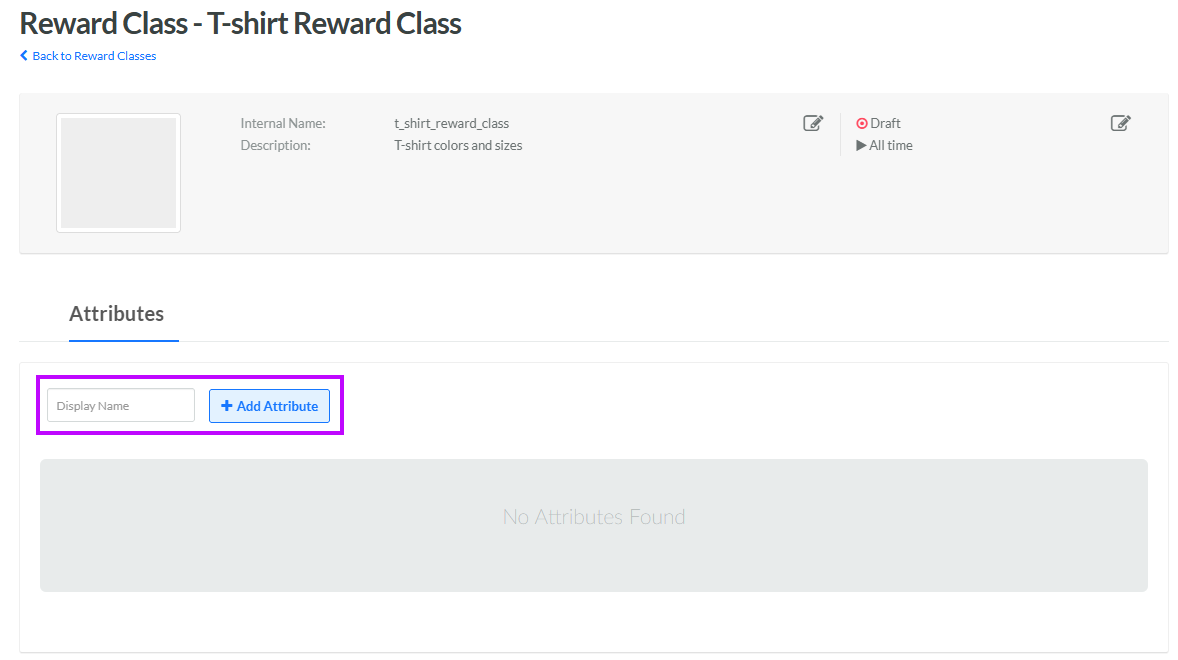
In the Display Name field, enter a name for the new Attribute.
-
Click Add Attribute. The platform adds the Attribute to the Attributes tab.
-
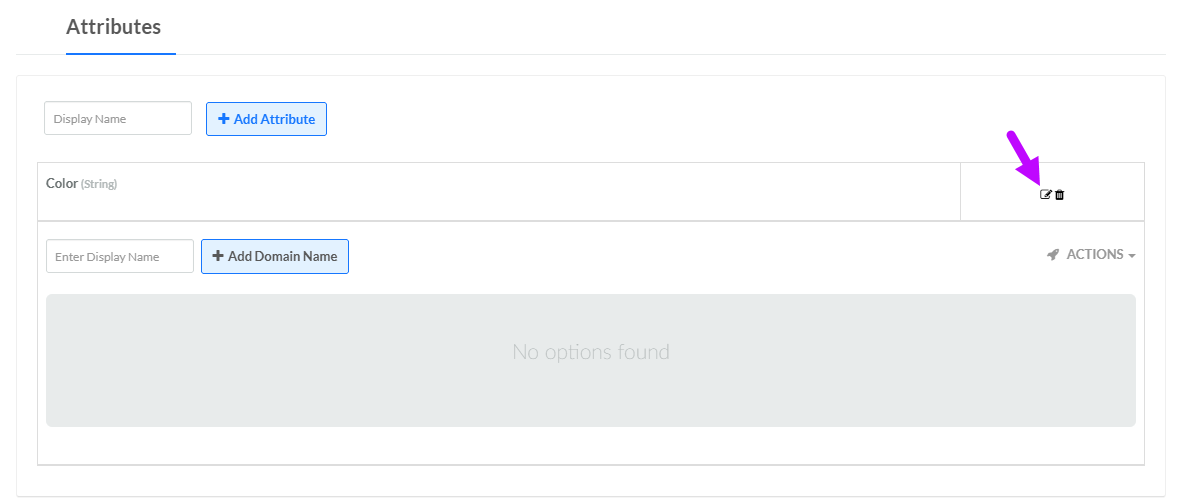
To configure the Attribute properties, click the Edit icon next to the Attribute. The Edit <Attribute Name> pop-up window is displayed.
-
The Display Name field is populated with the value you entered above; optionally edit this value.
-
The Internal Name is automatically populated based on the Display Name value. This field is not editable by default. To edit the Internal Name, check Edit Internal Name. A confirmation dialog box is displayed; click Ok. Edit the Internal Name value.
-
The default data type for a new Attribute is String. Optionally, from the Data Type drop-down menu, select a different Data Type: Boolean or Integer.
-
Optionally, in the Hint field, enter a note or a description of this Attribute. The Hint value is displayed on the Reward Class Details screen next to the name of the Attribute.
-
Click Save.
Optionally, an Attribute can be defined with a set of valid values, referred to as a Domain. See Add a Domain Value to an Attribute for more information on defining the Domain values for an Attribute.
